What to make copies of and why
You may have been hearing conversations about website security, hosting problems and PHP vulnerabilities, and wondering whether any of this affects your Squarespace website.
The good news is that Squarespace does not use the programming language PHP, so you do not need to worry about updating PHP on your website as you would with a self-hosted website, such as WordPress.
One of the benefits of using Squarespace is that it takes care of the hosting and underlying software for you. So much of the technical work happens behind the scenes without you having to manage it yourself.
Why it’s worth backing up your website
Unfortunately, as you will know no technology or website is completely free from risk. Something could go wrong, whether it’s a wider technical issue, your website being hacked or you accidentally deleting something important. If one of these things happens, it may not be possible to recover everything on your site.
I know you have better things to spend your time on than worrying about website maintenance. But your website holds years of your specialist work and intellectual property, including the carefully chosen words that share the unique way you work and the valuable resources you have created for your ideal clients.
So keeping copies of your website content, images and custom design details really is an important step, albeit a boring one, to protect your site and the work you have put into it.
Keeping a copy of your Squarespace website
One of my bugbears is that Squarespace doesn’t have a single backup button that creates a complete copy of your website that you can simply restore if something goes wrong.
Squarespace does offer an option to export some of your website content but it doesn’t include everything. There are also third-party tools that can help with website backups, but what they save varies. So here are the straightforward, non-techy steps I recommend for keeping copies of the important parts of your website…
1. Take screenshots of your website
This one’s an easy quick win. Taking screenshots of your website as it looks now gives you a handy visual reference for your page layouts, design and content if you or a designer ever needs to rebuild part of your site.
I use the GoFullPage Chrome extension to capture a full webpage in one go and there are plenty of other extensions offering this same thing. You can save in PNG and PDF formats.
I would definitely recommend taking screenshots of essential pages such as your homepage, about page and services pages, if you don’t want to spend time screenshotting every page. You might also want to take screenshots of any important landing pages and if you have a blog, a few key posts, too.
Save the screenshots however you store copies of other information. For example, I save files locally on my computer, have a separate hard drive that I periodically back up everything to and also save items to my Google account (cloud account).
2. Save a copy of your website content
Your website copy will have taken a lot of thought and consideration to get right. Perhaps you even invested in a copywriter or messaging consultant. So it’s worth keeping a copy somewhere outside of Squarespace if you don’t have it saved somewhere already. You may have since updated your copy and messaging over time so it’s worth saving an up to date copy.
You could save your copy in a Word document or Google Doc, organising it by page so it’s easy to find. If you publish blog posts regularly, get into the habit of saving each post as you publish it, so you’re not faced with a huge job of copying everything across at some point in the future.
3. Save your original images and files
Your images are an important part of your website, particularly if you have invested in professional photography, blog images, downloadable resources or graphics, icons or illustrations that form part of your visual identity.
Keep the original files somewhere safe, ideally on your computer and backed up to cloud storage.
Have you already uploaded everything to Squarespace?
You can download individual images from your Squarespace Asset Library:
Go to Website → Assets in your Squarespace dashboard.
Find the image you want to save and click the three dots.
Select File Details.
Once the preview has loaded, right-click the image and save it to your computer.
Unfortunately, you cannot download all your images in one go, so you will need to save them individually. Squarespace also does not provide a direct download option for uploaded videos in the Asset Library, so make sure you keep your original video files somewhere safe, too.
It is much easier to keep your original files organised as you go, rather than trying to retrieve everything later.
4. Make a note of your fonts, colours and custom code
It’s worth keeping a record of the details behind your website design, too. Having these to hand can save you time if you ever need to recreate part of your site.
Your fonts and colours
If you do not already have a brand guidelines document with your fonts and colour palette, go to Website → Pages, open a page and click the paintbrush icon to access Site Styles. Here you can find your font settings and colour palette.
Make a note of your fonts and save your brand colour codes (usually HEX codes, such as #F5EDE5) somewhere safe.
Your custom CSS and code
If you have custom CSS on your site, go to your Custom CSS panel and copy the code into a separate document. If you have added anything through Code Injection, make a separate copy of that code, too. Depending on your Squarespace version and site setup, these options may be in slightly different places.
Not sure how to find them? Type / on your keyboard to bring up Squarespace's search, then type ‘Custom CSS’ or ‘Code Injection’ to find the relevant panel.
Keep a note of where the code belongs as well as the code itself, so you or a designer can identify it if it needs to be added again.
5. Duplicate your Squarespace website
You can also duplicate your Squarespace website to create another copy of it. This can be useful as a reference for your site’s structure and design, but it’s important to understand its limitations.
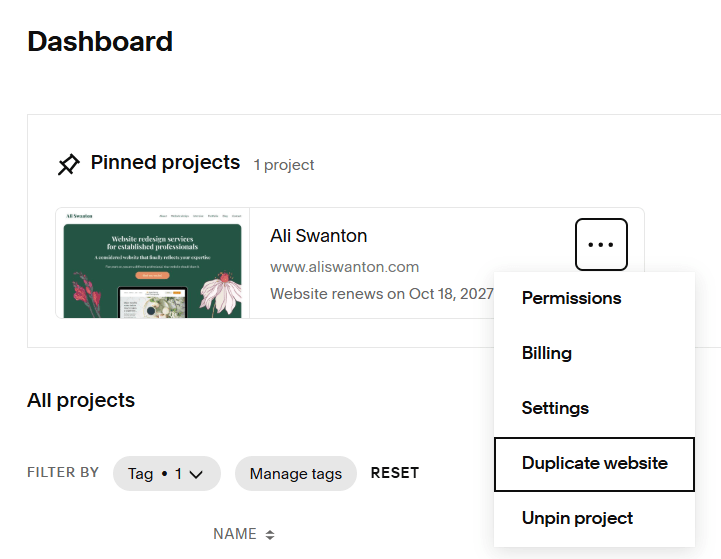
To duplicate your site, go to your Squarespace account dashboard, find the website you want to duplicate, click the three dots beside it and select Duplicate Website.
A duplicate is created as a separate trial site. The standard trial lasts 14 days, so it’s not a long term backup solution. Not everything carries over, either. Some content, settings and other information may be missing, so it isn’t a complete backup that you can simply restore if something goes wrong.
Think of it as an additional reference copy, rather than a replacement for saving your website content, images and important information separately.
You can find out more in Squarespace’s guide to duplicating a site.
6. Keep a copy of important business information
Your website may hold more than just your words and images. You might also have mailing list contacts, product details, orders, bookings or form submissions that are important to your business.
If you sell products, take bookings or collect enquiries through forms, remember to save any important records separately. These may need to be exported from Squarespace or the platform you use to manage them.
For example, to export your Squarespace contacts, go to Contacts, select the three dot menu and choose Export All Contacts. If you use another email marketing platform, check its export options, too. Many allow you to download your contacts as a CSV file.
It’s worth checking what information you rely on and how you can save a copy of it from Squarespace or any connected platforms.
How often should you back up your Squarespace website?
It depends on how often your content changes and how much information your business relies on. As a starting point, I would recommend reviewing your website content and screenshots every six to twelve months. If you regularly publish blog posts or update your services, save those changes as you go rather than waiting until your next review.
For business information that changes more frequently, such as mailing list contacts, orders or bookings, you may want to export it more often.
The main thing is to find a routine that works for you and stick to it. There’s no point creating a complicated process that becomes another job you never get around to doing. And if you would rather not tackle it all yourself, you could always ask your website designer or virtual assistant to help you.
Your Squarespace backup checklist
Work through this checklist to keep a copy of the important parts of your Squarespace website. You don’t have to do everything in one sitting. Start with what would be hardest to replace or perhaps feels like the easiest win for right now.
Want a hand saving copies of your website content?
Knowing what to save is one thing; finding the time to do it is another!
My Half Day Squarespace Intensive gives us dedicated time to focus on the important parts of your website and get started on keeping copies of them.
If you are wondering whether an intensive would be helpful for your website, get in touch and tell me a little about what you need.